
What is Twitch DVR Player?
Twitch DVR Player replaces the default Twitch video player with a custom player that supports DVR (Digital Video Recorder) features. You can pause a live stream, rewind to watch something you missed, and then jump back to live at any time.
- Pause & Rewind — Pause any live stream and drag the progress bar to go back in time
- VOD Rewind — Rewind beyond the buffer by loading the channel's past broadcast
- Back to Live — One click to jump back to the current live moment
- Clip — Create Twitch clips directly from the DVR player
- Quality Selector — Choose your preferred video resolution
- Keyboard Shortcuts — Full keyboard control for play, seek, volume, fullscreen, and theater mode
- Two Player Modes — Switch between DVR mode and Twitch's native player anytime
Getting Started
- Install Twitch DVR Player from the Chrome Web Store
- Navigate to any live channel on twitch.tv
- Click the extension icon in your browser toolbar to open settings
- Select "DVR Playback Mode" to activate the DVR player (the default is Twitch's native player)
- The Twitch player will be replaced with the DVR player — you'll see the custom progress bar and controls at the bottom
Player Modes
Switch between two modes from the extension popup:
| Mode | Description |
|---|---|
| Twitch Native Mode | Uses Twitch's default player. No DVR controls. This is the default mode after installation. |
| DVR Playback Mode | Replaces the Twitch player with the DVR player. You can pause, rewind, and jump back to live. |
How to Use
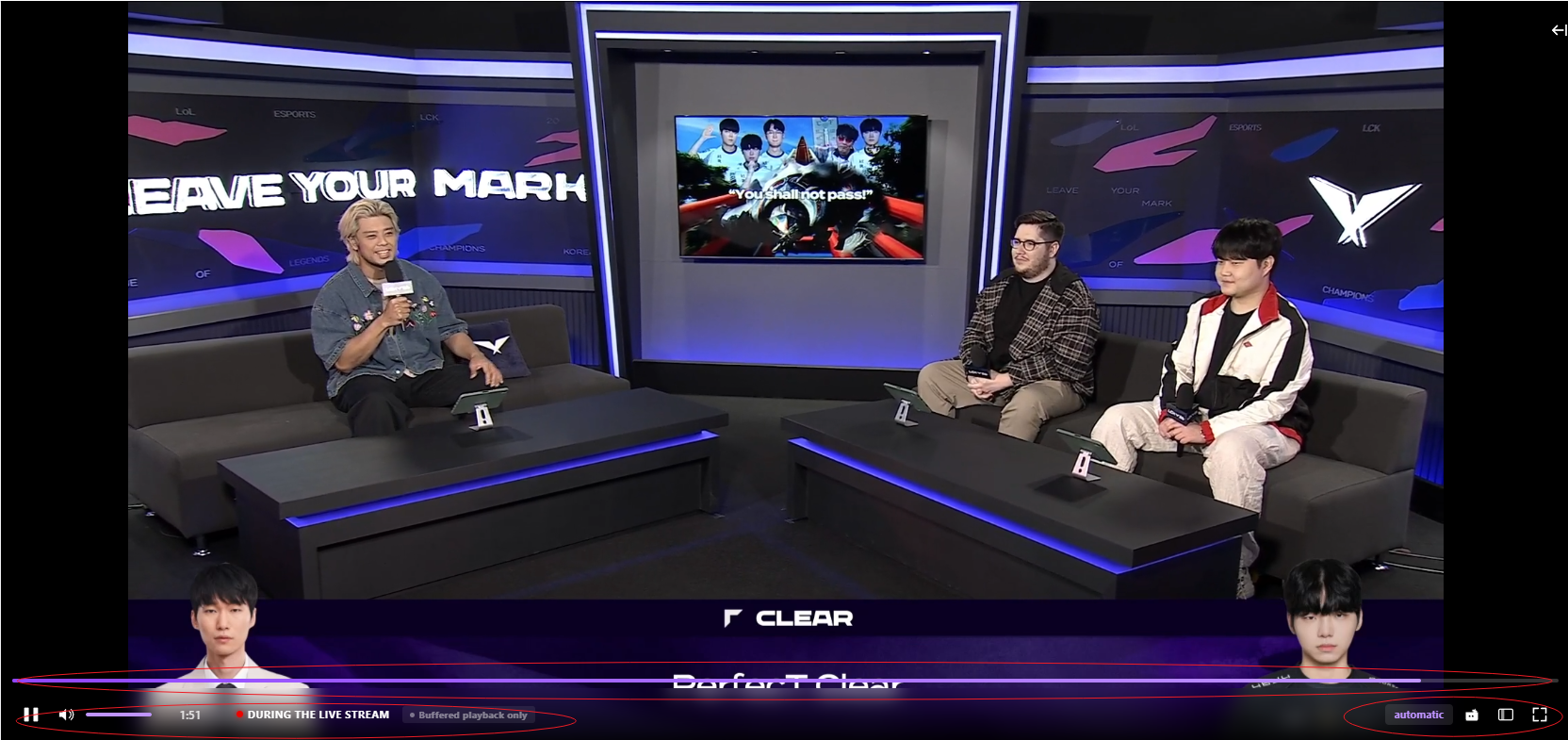
Rewinding a Live Stream
- While watching a live stream in DVR mode, click and drag the progress bar to the left to go back in time
- Or use the left arrow key to jump back 10 seconds
- A "Back to Live" button will appear next to the DVR status indicator when you are behind the live edge
- Click the "Back to Live" button or the live indicator to return to the current live moment
DVR Status Indicators
| Indicator | Meaning |
|---|---|
| Detecting | The extension is checking if DVR rewind is available for this channel |
| DVR Available | Full DVR support — you can rewind beyond the buffer using the channel's past broadcast |
| Buffer Only | You can only rewind within the current buffer (limited to recent minutes). The channel has not enabled past broadcasts. |
| Subscribers Only | The channel's past broadcasts are only available to subscribers |
Creating Clips
Click the Clip button (scissors icon) in the player controls to create a Twitch clip at the current live moment.
Changing Video Quality
Click the quality button (shows current resolution like "Auto" or "1080p") in the controls bar to select a different resolution.
Keyboard Shortcuts
These shortcuts work when the DVR player is active and you are not typing in the chat box:
| Shortcut | Action |
|---|---|
| Space | Play / Pause |
| ← | Rewind 10 seconds |
| → | Forward 10 seconds |
| ↑ | Volume up |
| ↓ | Volume down |
| M | Mute / Unmute |
| F | Toggle fullscreen |
| Alt + T | Toggle theater mode |
Frequently Asked Questions
Why can't I rewind on some channels?
Some Twitch channels have disabled past broadcasts (VOD). In this case, you can only rewind within the current buffer (typically a few minutes). Channels that have "Buffer Only" status cannot be rewound beyond the buffer. Additionally, some channels restrict VOD access to subscribers only.
How far back can I rewind?
If the channel has DVR available (green indicator), you can rewind as far back as the stored past broadcast — usually the entire stream duration. If only buffer rewind is available (yellow indicator), you can rewind within the current buffer, which is typically a few minutes.
The extension is not working on a Twitch channel. What should I do?
First, try refreshing the page. If it still does not work, go to Chrome's extension management page (Chrome menu → More tools → Extensions) and click the refresh icon on the extension card. Make sure you have selected "DVR Playback Mode" in the extension popup.
The extension does not work on a website. How do I report this?
If you find that the extension does not work on a particular Twitch channel page, please send the website URL and a description of the issue to our developer email: j54289418@gmail.com. We will investigate and fix it as soon as possible.
Why is the video muted after auto-play?
Chrome blocks auto-play with sound. The player will automatically mute and display a "Click to unmute" overlay. Simply click anywhere on the video to restore sound.
Does this extension work on VOD (recorded) videos?
No. Twitch DVR Player is designed for live streams only. It does not modify the player on recorded videos, clips pages, or other non-live pages.
Will this affect my Twitch account or stream quality?
No. The extension only replaces the video player interface. It uses the same video streams that Twitch provides. Your account, follow list, chat, and everything else remain unchanged.
How do I switch back to the default Twitch player?
Click the extension icon in your browser toolbar and select "Twitch Native Mode". The page will automatically restore the original Twitch player.